

Benefits include
Faster access from a dedicated app icon.
Full-screen operation without browser controls.
Better reliability in areas with poor mobile signal.
Improved performance through local data storage and caching.
Reduced risk of accidentally navigating away from the timing screen.
iPhone / iPad (Safari)
Open Safari.
Navigate to the CTT Timing App website.
Tap the Share button (square with an upward arrow).
Scroll down and tap Add to Home Screen.
Tap Add.
The CTT App icon will now appear on your home screen and can be launched like any other app.
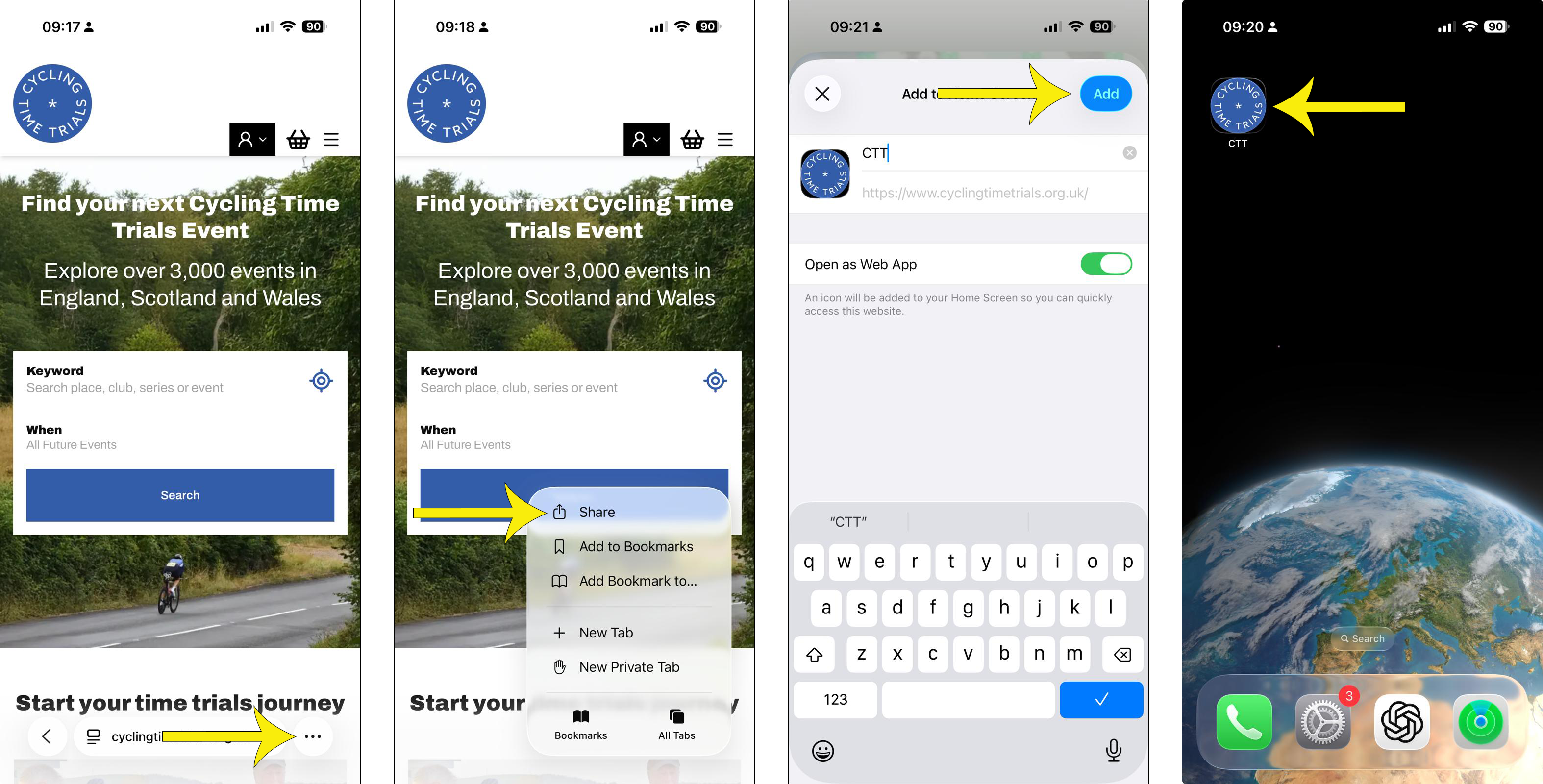
If you normally use Chrome on your iPhone: open the CTT Timing App website in Safari and follow the steps above. Home Screen installation is currently performed through Safari on iPhones and iPads.
Android (Chrome)
Open Chrome.
Navigate to the CTT Timing App website.
Tap the three-dot menu in the top-right corner.
Tap Install App or Add to Home Screen (wording may vary by device).
Follow the on-screen prompts.
The CTT App icon will now appear on your home screen and can be launched like any other app.
Other Phones and Tablets
Most modern mobile devices support adding web apps to the home screen. Look for an option such as:
Install App
Add to Home Screen
Add Shortcut
within your browser's menu.
Once installed, launch the CTT App using its home screen icon rather than opening it through your browser.