
Event Organisers - please refer to this (🔗) help page instead - available to admins only
This document covers:
For the best experience, we recommend installing the CTT App on your phone's home screen rather than accessing it through a web browser each time. This article explains how to do that.
1. What is CTT | Live
CTT | Live is a free, fully integrated results app for time trial organisers. It lets you publish live results as riders finish, giving competitors and spectators instant updates on phones, tablets, or big screens. At the same time, it cuts down on admin - with results uploading directly to the CTT website at the push of a button.
Designed for both Open and Club events, CTT | Live is simple to use and built with organisers in mind. The app displays both the overall result and result by category on a fully customisable leader board. You can capture results straight from a phone, tablet, or computer, calculate and provide age adjusted times, and connect seamlessly with the CTT website (🔗) and CTT | Timing (🔗). No extra accounts, no hidden costs - just straightforward tools that make running your event smoother and more professional.
With CTT | Live you’ll:
Deliver a better experience for riders and supporters with instant results.
Save time by reducing manual data entry and avoiding duplicate work.
Keep everything in one place, with results linked directly to your official CTT event.
Use powerful features like multi-device access, and big-screen displays.
And because it’s part of the CTT system, it’s free to use for all CTT events.
2. Who is CTT | Live for
Open event organisers
Club event organisers
Timekeepers / volunteers who support results entry
Riders and spectators to view instant updates
3. Accessing CTT | Live - Admin
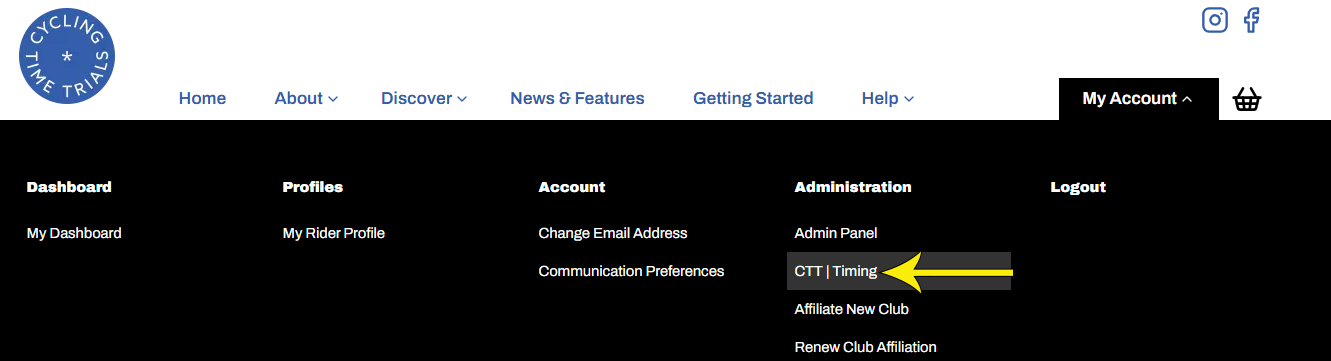
Named Administrators access CTT | Live directly from the website's homepage (🔗). Hover over (or tap on a phone) My Account and select CTT | Timing.
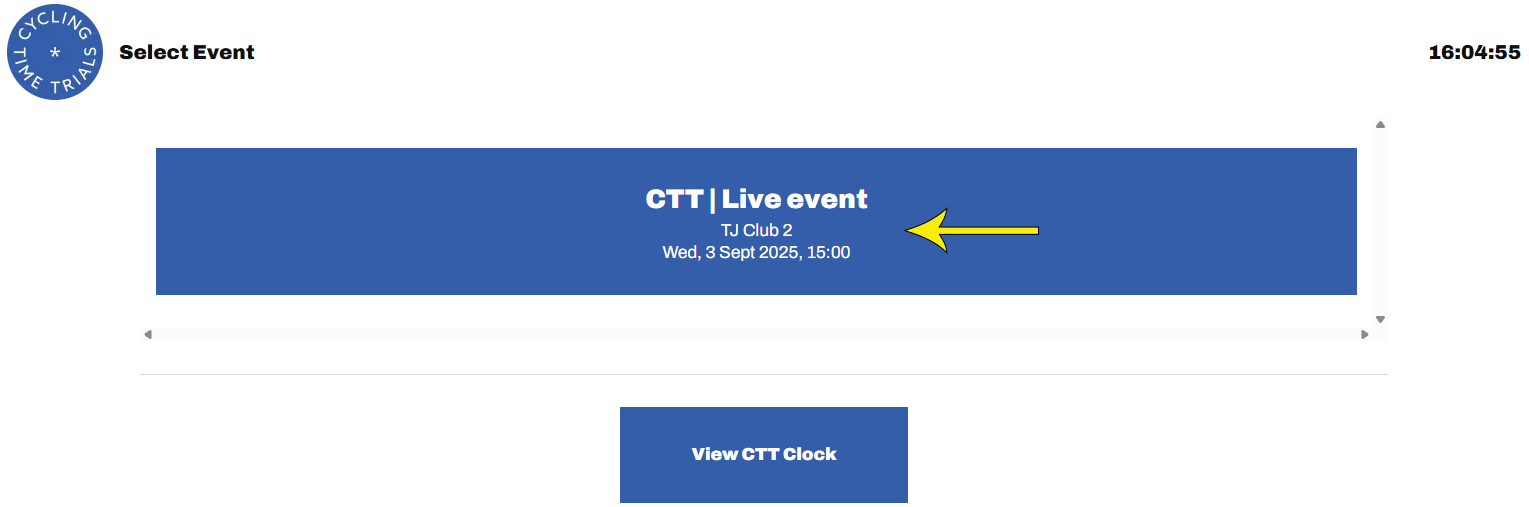
Then select the event by clicking in the box associated with your event.
4. Applying finish times to CTT | Live
All actions described in this Knowledge Base article can be carried out on a computer, tablet, or phone. The screenshots shown below use a phone, as this is the device most administrators are likely to use during the event itself.
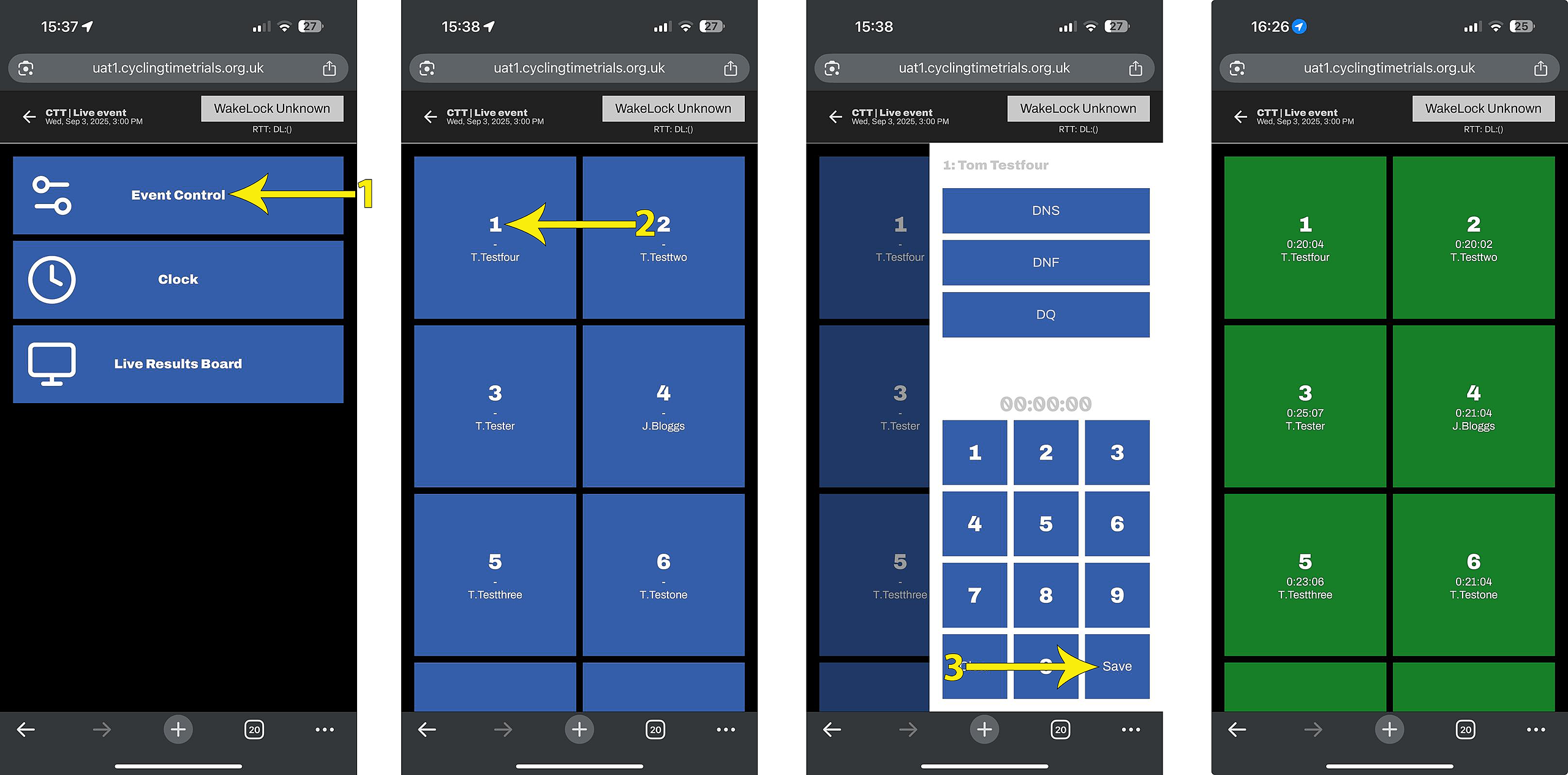
Select Event Control (arrow 1 below) to be presented a grid of buttons, each representing a rider.
As each rider's time is recorded, select the corresponding button (arrow 2) and type in their time or DNS/DNF/DQ and save (arrow 3). The button will turn green to indicate that the time has been accepted and updated on the Live Results Board (🔗) but may still be amended.
5. The Live Results Board
The Live Results Board screen shows the current standings, live, as the event progresses and finish times are added in Event Control.
It works on phones and tablets but looks best on a laptop or projector - ideal for use at race HQ for example.
Every time a rider's finish time is recorded, the board updates instantly.
It calculates current positions (1st, 2nd, 3rd etc.) and displays both overall result and result by category.
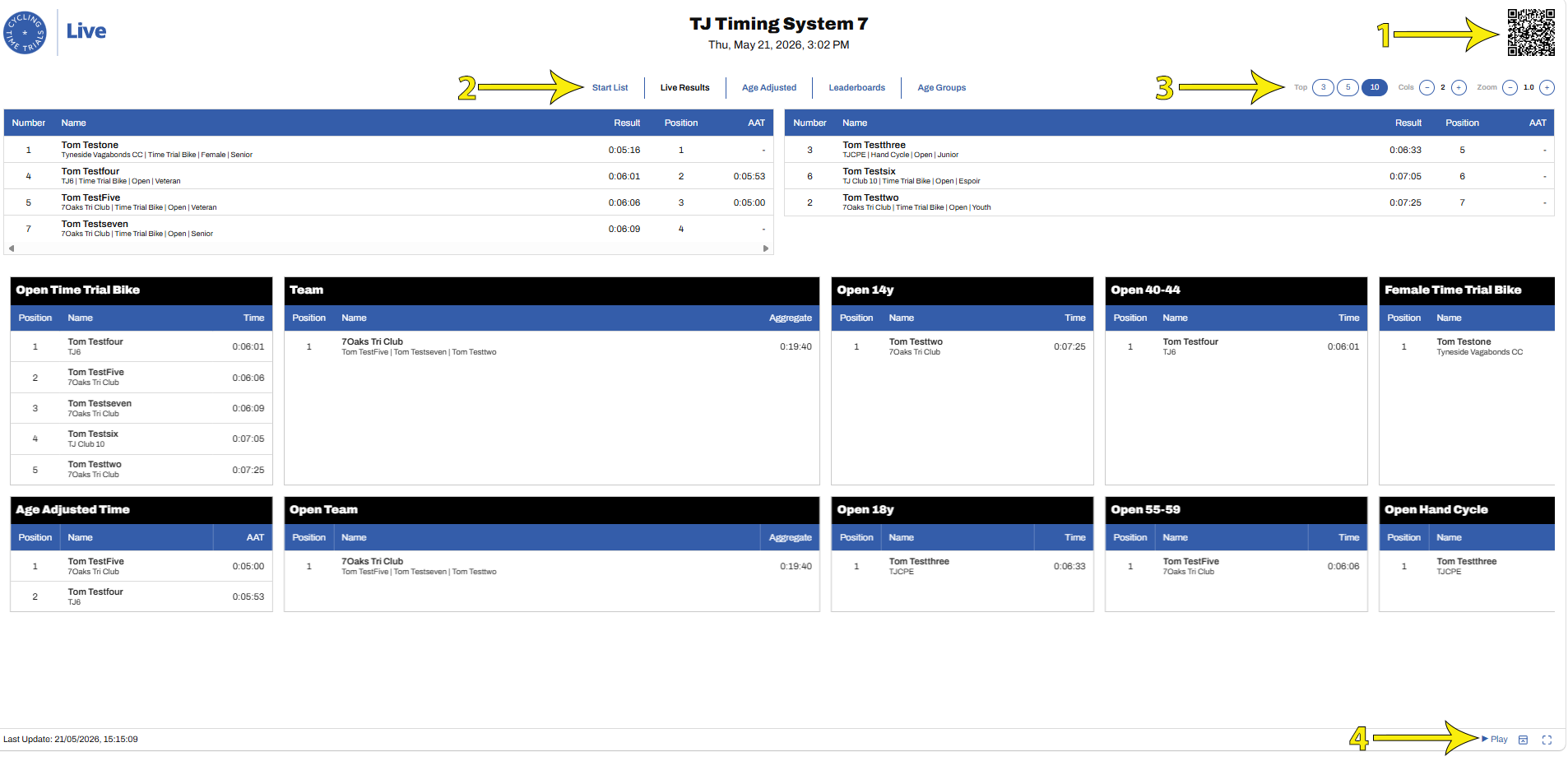
Top left (arrow 1 in the screenshot shown below) is a QR code that provides a link to the result board, useful when a rider viewing the big screen at HQ wants to be able to link to it on their phone or share it to others.
Both the content and layout are configurable.
Tabs at the top (arrow 2) provide a selection between various views. Options will depend on how the results board has been configured at setup by the organiser and may include: the Start List; Live Results; Age Adjusted Results; Handicapped Results; just the Leaderboards specified at setup; and just the Age Group Boards.
The Results views show both the full set at the top with a scrolling set of leaderboards underneath
There are a set of buttons, top right (arrow 3), used to set the number of rows shown in the leaderboards; the number columns used for the main results and a zoom in / out. These may be manipulated to best display your results according to the field size and the dimensions of the screen being used.
Bottom right (arrow 4) offers a Play / Stop button to toggle between (i) Live Results + scrolling Leaderboards and (ii) each screen displayed individually for 15 seconds on a repeating loop (Live Results → Leaderboards → Age Groups).
To the right of the Play / Stop button there are buttons that show / hide the layout buttons (top right) and to set the display to full screen.
6. Accessing Live Results
As a rider or spectator there are various ways to access the results board:
Using a phone's QR code reader, a rider / spectator may scan the QR code from the results board itself (for example from the screen displayed at the event's HQ), and get taken straight to the results board on their phone (yellow arrow in screenshot above)
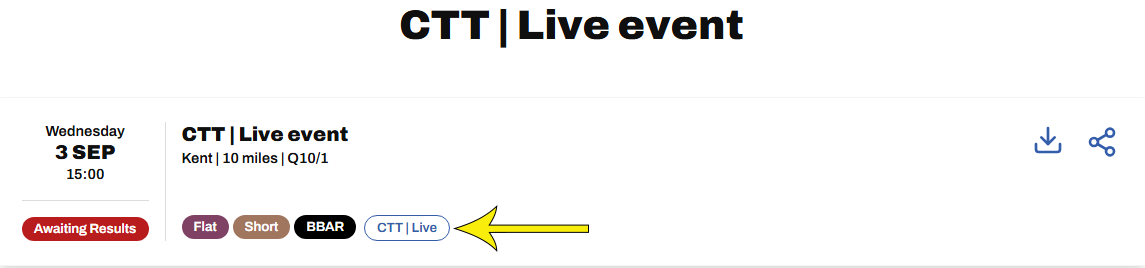
From the event's page on the website, select the CTT | Live label as shown below
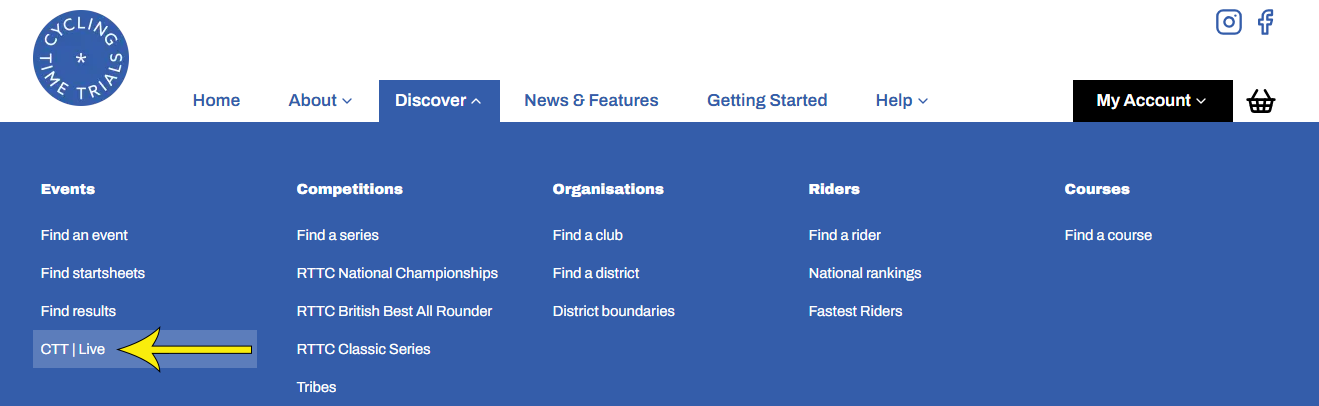
Alternatively, to view a list of current enabled CTT | Live events (i.e. events scheduled during the past week and following month), from the homepage, select Discover ➜ CTT | Live
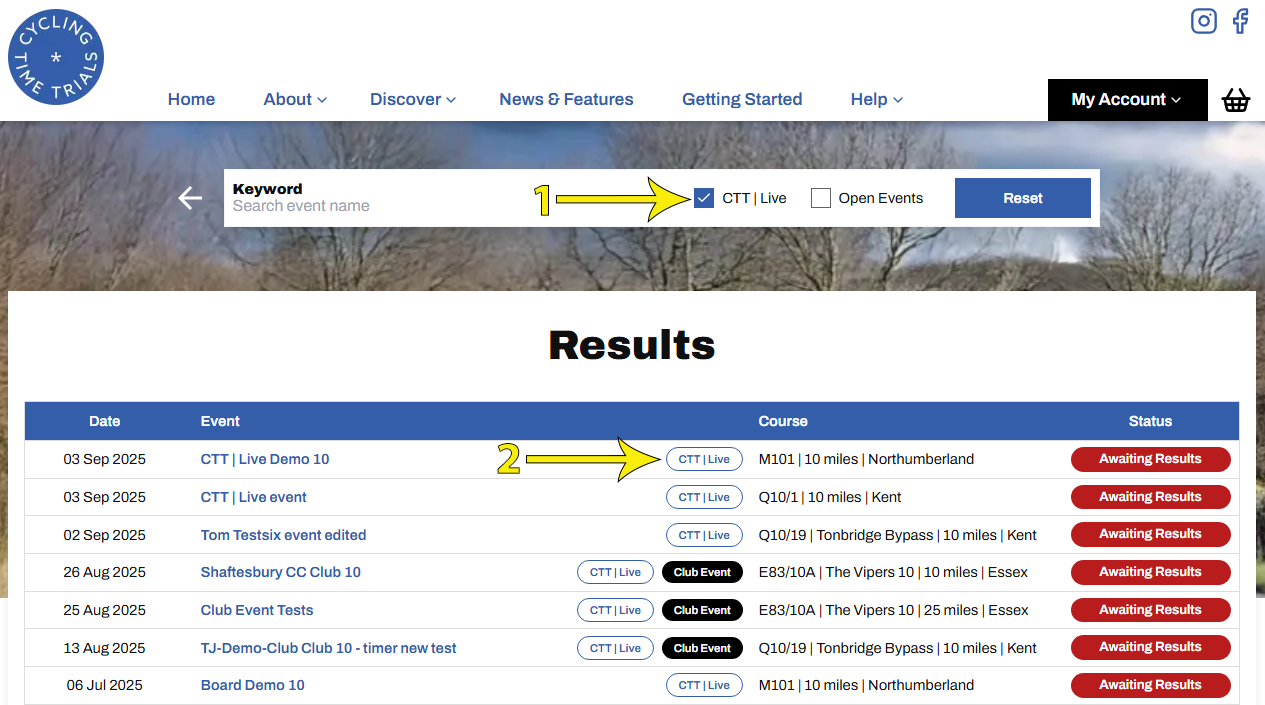
To view a list of historical results where CTT | Live was enabled, select Discover ➜ Find Results, then select the CTT | Live checkbox (arrow 1 below)
From either list (current or historical), select the CTT | Live label to be taken straight to the Results Board for that event (arrow 2)